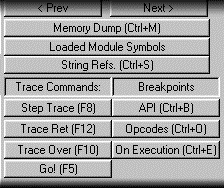
The lateral button bar is where there the debugger has their most functionalities. Let us pass to describe each one of the buttons for separate:
Memory Dump Ctrl+M: It shows the Memory Editor.
Loaded Modulates Symbols: It shows Symbolic Information dialog box.
String.Refs. Ctrl+S: It shows the string references of the local procedure. See Strings Reference Viewer.
Subsequently we find two columns of buttons, the left column contains the debugging buttons and the right column the breakpoints for setting breakpoints of various types.
Step Trace (F8): Traces the current instruction, if the instruction is a call to another procedure inside the executable code, the purifier will enter in that call and it will stop the execution in the next instruction inside the call.
Trace Ret (F12): Continues program execution until it finds a procedure return opcode.
Trace Over (F10): It Traces the current instruction and stops the execution in the next instruction, if the current instruction is a call, the debugger does not enter in the call and it will execute the program until the next instruction to the call, this behavior is equivalent for the for/next instructions, allowing this way to trace the whole loop without having to execute it line to line.
Trace X (F6): Traces X lines of code, a dialog box appear, you only have to enter the number of instructions to trace.
API CTRL+B: Shows the dialog box management of breakpoints on API calls of the virtual machine.
Opcode Ctrl+O: Shows the dialog box for management of breakpoints on opcodes.
On Execution Ctrl+E: It shows the dialog box for management of breakpoints on p-code addresses.