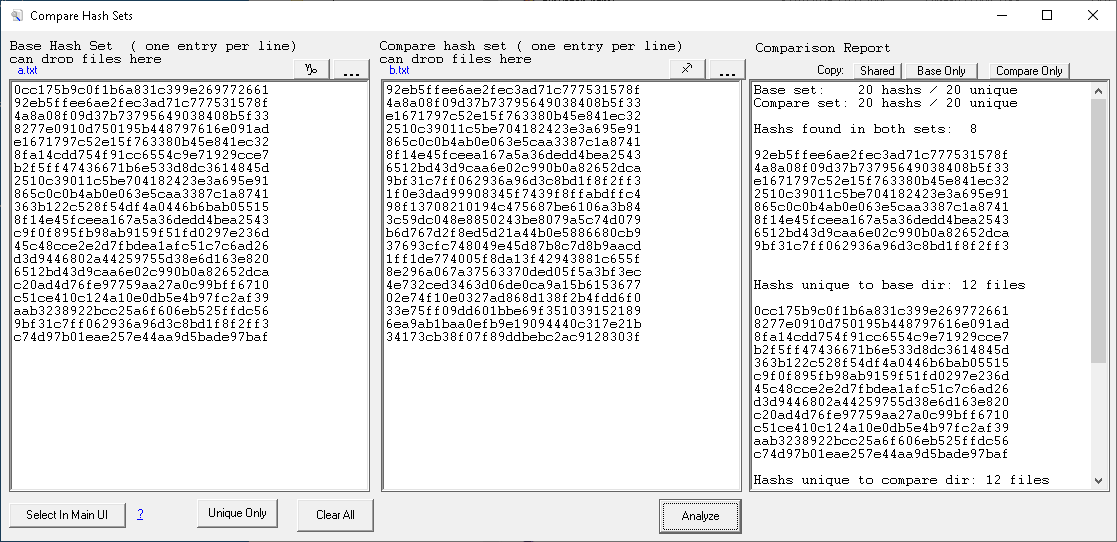
Compare HashSets (frmCompareHashSets) is a three-pane differential analysis dialog for comparing two arbitrary hash lists. Both inputs are plain text, one hash per line; either can be loaded from a file (file picker, drag-and-drop), preloaded by another form, or pasted in. The right pane holds the comparison report; clipboard buttons let you split out just the shared, base-only, or compare-only subsets.
The dispatch is shellext.exe "%1" /hset, which calls frmCompareHashSets.Show. It's also reachable from the Hash Files window's system menu, and from File Hash's External → Compare hash Sets.
Each input pane (Base, Compare) accepts hashes one per line. Three ways to load:
| Method | Behavior |
|---|---|
| Type or paste | Direct edit of the text box. |
| "..." button | Opens a file picker, loads the file's contents into that pane, sets the small red label above the pane to the file name. |
| Drag and drop a file | Drop a hash file onto the pane — same effect as the file picker. |
| Preload from another form | The dialog's preload method is called from File Hash's External menu to fill in a starting set. |
The "f" (Wingdings 3) and "g" arrows above the input panes shuffle content sideways — "f" copies Compare to Base and clears Compare; "g" copies Base to Compare and clears Base. Useful for swapping which side is treated as the baseline without re-loading.
The Analyze button compares the two sets and writes the report into the right pane. Each input is first deduplicated (same hash twice in the list counts once). The report has four sections:
| Section | Contents |
|---|---|
| Header | Total and unique counts for each input. |
| Hashs found in both sets | The shared subset. |
| Hashs unique to base dir | In Base, not in Compare. |
| Hashs unique to compare dir | In Compare, not in Base. |
If there are no shared hashes the dialog shows a "no matches" message instead of writing a report; the unique-only listings still rely on Analyze having been clicked.
After Analyze runs, the three small buttons in the upper-right corner copy just one section of the report to the clipboard, without the surrounding header text:
| Button | Copies |
|---|---|
| Shared | Hashes present in both sets. |
| Base Only | Hashes in Base but not Compare. |
| Compare Only | Hashes in Compare but not Base. |
This is the typical handoff: run Analyze, click the subset you want, paste it back into Compare HashSets or another tool to chain another comparison.
| Control | Action |
|---|---|
| Unique Only | Replaces the Base pane with the deduplicated version of itself, sets the form caption to the unique count. Quick way to count unique hashes in a list and discard the duplicates. |
| Clear All | Empties all three panes. |
| Select In Main UI | Visible only when the Hash Files dialog is also open. Reads MD5s from the Base pane and selects every matching row in the Hash Files listview — setting up a follow-up action like Move Selected to SubFolder. Misses are listed in the Compare pane. |
| ? | One-line help text for Select In Main UI. |