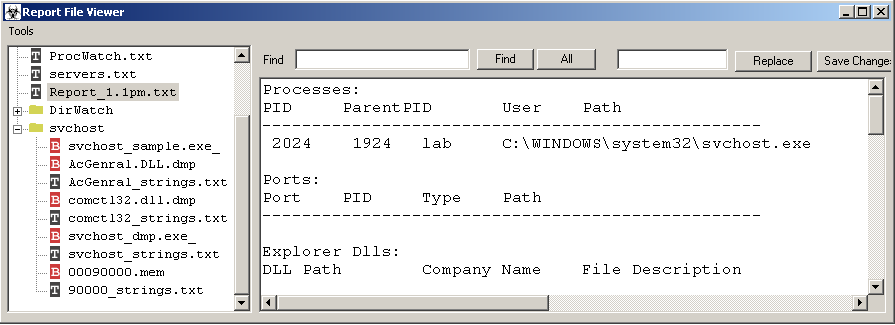
Report_*.txt from the analysis run. The tree on the left shows every artefact the run produced, with sub-folders for per-process analyses (svchost here).The Report Viewer (frmReportViewer) is the post-run window that lets you walk an analysis folder. It opens automatically when the wizard's countdown finishes, and on demand from Wizard → Tools → Open Saved Analysis or Main UI → Data → Report Viewer.
The window is laid out as a tree view on the left over the analysis folder, with a right pane that switches between three views based on the type of node selected.
Every file in the folder is added to the tree with one of two icons, chosen by extension:
| Icon | Extensions | Right-pane view on click |
|---|---|---|
| text | .txt, .log, .htm, .ini, .bat | Editable text box with the file contents loaded. |
| binary | everything else | Embedded hex editor (the rhexed.HexEd control). |
Folder nodes get a folder icon and a third view: a list view of the folder's contents with file name, byte size, MD5, and compile date (or file type for non-PE files). PCAP files are a special case — clicking shows a hint message; double-click hands them to the registered shell handler via ShellExecute.
Report_*.txt from the analysis run. The tree on the left shows every artefact the run produced, with sub-folders for per-process analyses (svchost here).The text view is a fully editable rich-text box. The four buttons at the top operate on it:
| Control | Action |
|---|---|
| Find | Find next occurrence of the substring in Find. Caption shows total hit count on first invocation. Re-clicking advances to the next match; wraps to "no more" when the end is reached. Case-insensitive. |
| All | Extract every line containing the search term and dump them to Notepad. If the search term contains *, the per-line check uses VB Like matching instead of plain InStr, so http://*.exe works as a wildcard. |
| Replace | Replace every occurrence of Find with Replace in the buffer. In-memory only — click Save Changes to write back. |
| Save Changes | Write the current buffer back to the source file. If the buffer wasn't loaded from disk, prompts for a save path. |
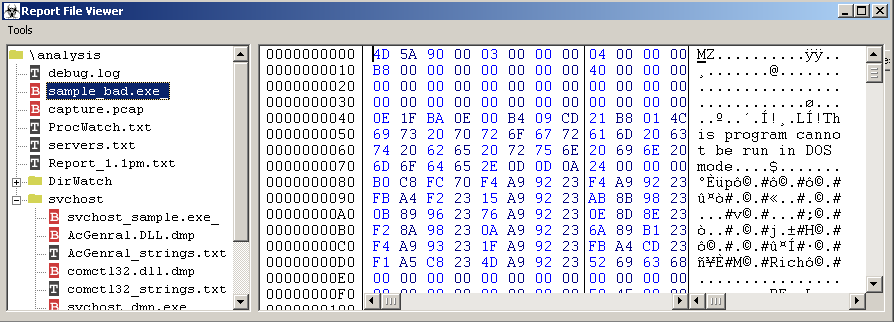
Selecting a binary node loads the file into the embedded hex editor. Search, strings extraction, and copy-to-disk are provided by the hex control's own context menu. Useful for the auto-saved memory dumps in [procname]\ subfolders and for RWE region captures in RWE_Memory\.
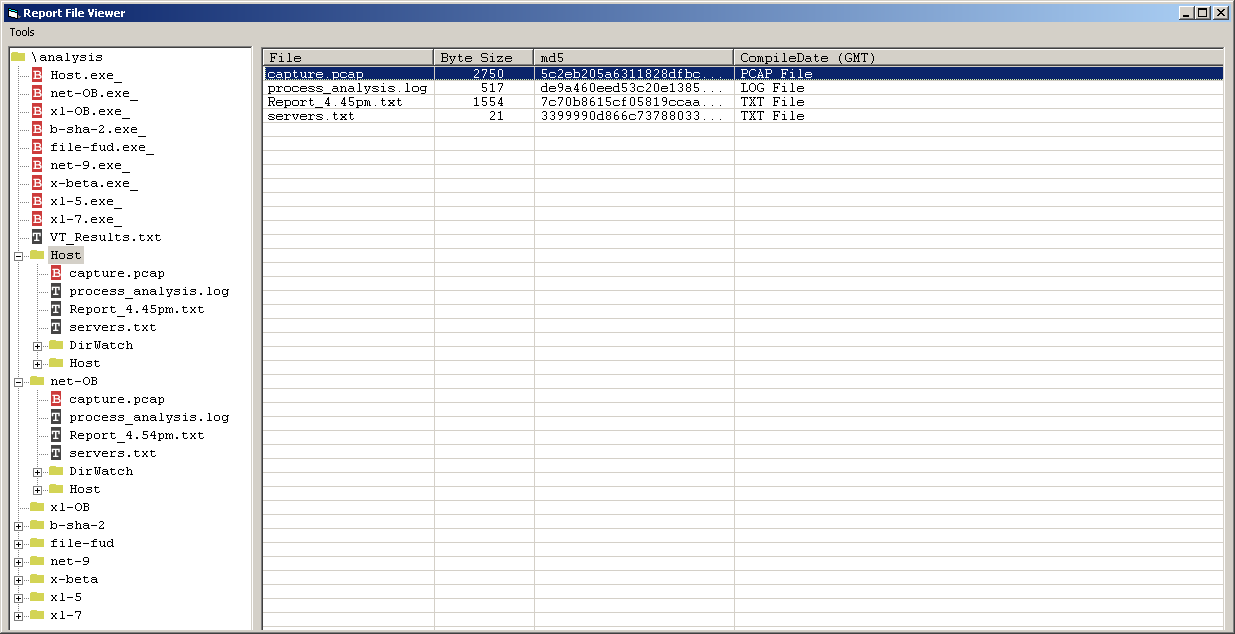
WBEMESS.LOG) get a type description.Selecting a folder node populates the list view by hashing every file in the folder. Columns: File, Byte Size, md5, CompileDate (GMT) — the compile date column shows the PE compile timestamp for executables, or a file-type description for non-PE files.
Right-click on the list view:
| Item | Action |
|---|---|
| Copy Table | Copy the listed files as a tab-delimited table to the clipboard. |
| Copy Table CSV | Same as Copy Table but with commas instead of tabs. |
| VT Lookup on Selected | Look up selected files on VirusTotal by hash. Single-file selection launches virustotal.exe "[path]"; multi-selection puts a hash,path list on the clipboard and launches virustotal.exe /bulk. |
| Submit Selected to VT | Upload selected files to VirusTotal. Single launches virustotal.exe "/submit [path]"; multi puts the path list on the clipboard and launches virustotal.exe /submitbulk. |
| Delete Selected | Confirms, then deletes the selected files from disk and removes them from the list. |
| Item | Action |
|---|---|
| File Properties | Show file size and full PE properties (compile date, hashes, sections, version info) for the selected file. |
| VirusTotal Lookup on Selected | Single-file VT hash lookup on the selected tree node. |
| Submit Selected to VirusTotal | Single-file VT submit. |
| Refresh View | Re-walk the analysis folder, picking up any new files (e.g. if the malware is still active and the directory watcher is still saving copies). |
| External → Edit Cfg | Open shellext.external.log in Notepad. See External tools. |
| External → ... | One menu item per entry in the external-tools config, populated at form load. |
The Report Viewer reads shellext.external.log from the application directory at form load and adds an entry to the External submenu for each non-comment line. This lets analysts wire up their preferred reverse-engineering tools without editing source.
Format is one entry per line:
menu_text = command_line
Lines starting with # are ignored. Two substitution tokens are supported in the command line:
| Token | Replaced with |
|---|---|
| %1 | The full path of the currently-selected tree node, quoted. |
| %app_path% | The SysAnalyzer install directory, with trailing backslash. |
HxD = C:\Tools\HxD\HxD.exe %1
IDA Free = C:\Tools\IDA\ida.exe %1
PEStudio = %app_path%pestudio\pestudio.exe %1
Open in CFF Explorer = C:\Tools\Explorer Suite\CFF Explorer.exe %1
# Comment lines are ignored
# Notes about which tool wants what file type can go here
Open the config from External → Edit Cfg. Save and refresh the viewer (or reopen) for changes to take effect — the file is read at form load only.
| Item | Action |
|---|---|
| Load saved analysis folder | Browse for a different analysis folder and reload the tree against it. Useful for revisiting earlier runs. |
VT lookups and submissions go through a separate bundled tool, virustotal.exe, which lives beside sysanalyzer.exe. The Report Viewer just shells out to it with one of these argument shapes:
| Invocation | Effect |
|---|---|
| virustotal.exe "[path]" | Single-file hash lookup. |
| virustotal.exe "[path]" /submit | Single-file submit. |
| virustotal.exe /bulk | Bulk hash lookup. The Report Viewer puts a clipboard payload of hash,path\r\n entries first; virustotal.exe reads from there. |
| virustotal.exe /submitbulk | Bulk submit. Same clipboard handoff, with one path per line. |
If virustotal.exe is missing, the Report Viewer shows an error message and skips the action. The tool itself handles API keys and rate-limit policy — the Report Viewer does not see HTTP traffic directly.
The Report Viewer remembers its size and position between runs (saved to HKCU on form unload). The external-tools list is whatever the config file holds at form load — not stored separately.